Average Internet Speed UK: How to Improve Your Internet Speed as a Remote Worker

Short Summary
- In the UK, the average Internet speed has reached a maximum download speed of 285 Mbps in 2025 (Ofcom, 2025).
- There can be many reasons for a slow internet, such as Wi-Fi interference, an ageing router, loose cables or too many devices competing for limited bandwidth.
- Your broadband provider’s network can also be responsible, particularly during peak periods when many households in one area are competing for available network capacity.
- Start troubleshooting with an internet speed test tool to have transparency where you truly stand. Then begin with simple fixes such as restarting or repositioning your router.
- Better router placement, current firmware, stronger Wi-Fi security and a direct Ethernet connection can improve your internet speed and stability available.
- If you simply need more broadband, consider a faster speed tier package from your provider or switching to full-fibre cabling (FTTP).
Introduction

The pandemic changed how much we ask of our home internet connections. In 2020, when millions of people suddenly found themselves working, learning and spending more time at home, average monthly broadband data use in the UK jumped 36%, from 315 GB to 429 GB per connection (Ofcom, 2025).
Five years later, our appetite for data remains high. Ofcom recorded average usage of 583 GB per connection in July 2025, another 10% increase from the previous year (Ofcom, 2025).
Especially for us who work from home, the importance of a reliable internet connection cannot be overstated. I frequently run into the issue of a screen freezing halfway through with a client meeting or some of our subscribers actually told me that they arrived late to a scheduled remote job interview because of connection issues.
Therefore, your broadband needs enough speed and stability to let you do your job properly, even when other people (like your children or your husband) are online at the same time.
So, if your internet has been giving you trouble lately, this guide is for you. We will look at the average internet speed in the UK, what may be slowing down or interrupting your connection and ways to improve your internet speed when working from home.
What Is the Average Internet Speed in the UK?

According to Ofcom (2025), the average maximum broadband (i.e. high-speed internet) download speed in the United Kingdom stands at 285 Mbps, which is very fast internet.
Ofcom’s figures, as featured in their most recent Connected Nations UK Report 2025, have increased by close to 30% from 223 Mbps in 2024 and significantly from 170 Mbps in 2023 (Ofcom, 2025).
It is worth noting that the increase in the availability of faster broadband could be one reason for this trend. The percentage of houses in the UK that can connect to gigabit-capable broadband went up from 27% in 2020 to 82% in 2024 (Social Mobility Commission, 2025). A huge jump; mostly because of "Fiber to the Premises", or short FTTP.
Another reason for this massive increase is how Ofcom measures internet speed. They estimate the UK’s average maximum broadband download speed by taking the average of the maximum speeds available at homes. So the more houses have FTTP, the faster the average jumps.
Yet, if you want to know internet speeds more relevant to your experience, Ookla’s Speedtest Global Index provides another point of view. For June 2026, the UK median fixed broadband download speed was 181.45 Mbps, according to Speedtest measures (Ookla, 2026), which is still good, but still half as what Ofcom claims.
Reasons Why Your Internet Connection Keeps Dropping

If your internet keeps cutting out, slowing down without warning or working perfectly in one room but not in another, the culprit could very well be inside your home. Check these first rather than hastily changing settings or resorting to paying for a faster broadband package.
1. Walls, Floors and Radio Blocking Your Internet

In case you use wireless internet at home (i.e. Wi-Fi), you can explore the internet by connecting to a router, which transmits internet data using radio waves that travel between your router and other devices like your laptop or phone. As these Wi-Fi waves move through physical obstacles such as brick walls and ceilings, part of the energy carried by the waves is either absorbed or scattered, causing your signal to weaken even before reaching your device.
This explains why you have difficulties using Wi-Fi when you move to another room, particularly when you are a floor above or below where the router is installed. The further the signal travels and the more obstacles it encounters, the weaker it will be.
Interference from other radio frequency emitting gadgets is yet another reason for poor performance of Wi-Fi networks. Such as microwaves, cordless phones, baby monitors, and at times smart home devices (like speakers or surveillance cameras).
As these gadgets generate signals, they create more radio noise, which interferes with your Wi-Fi connection.
2. Router glitches
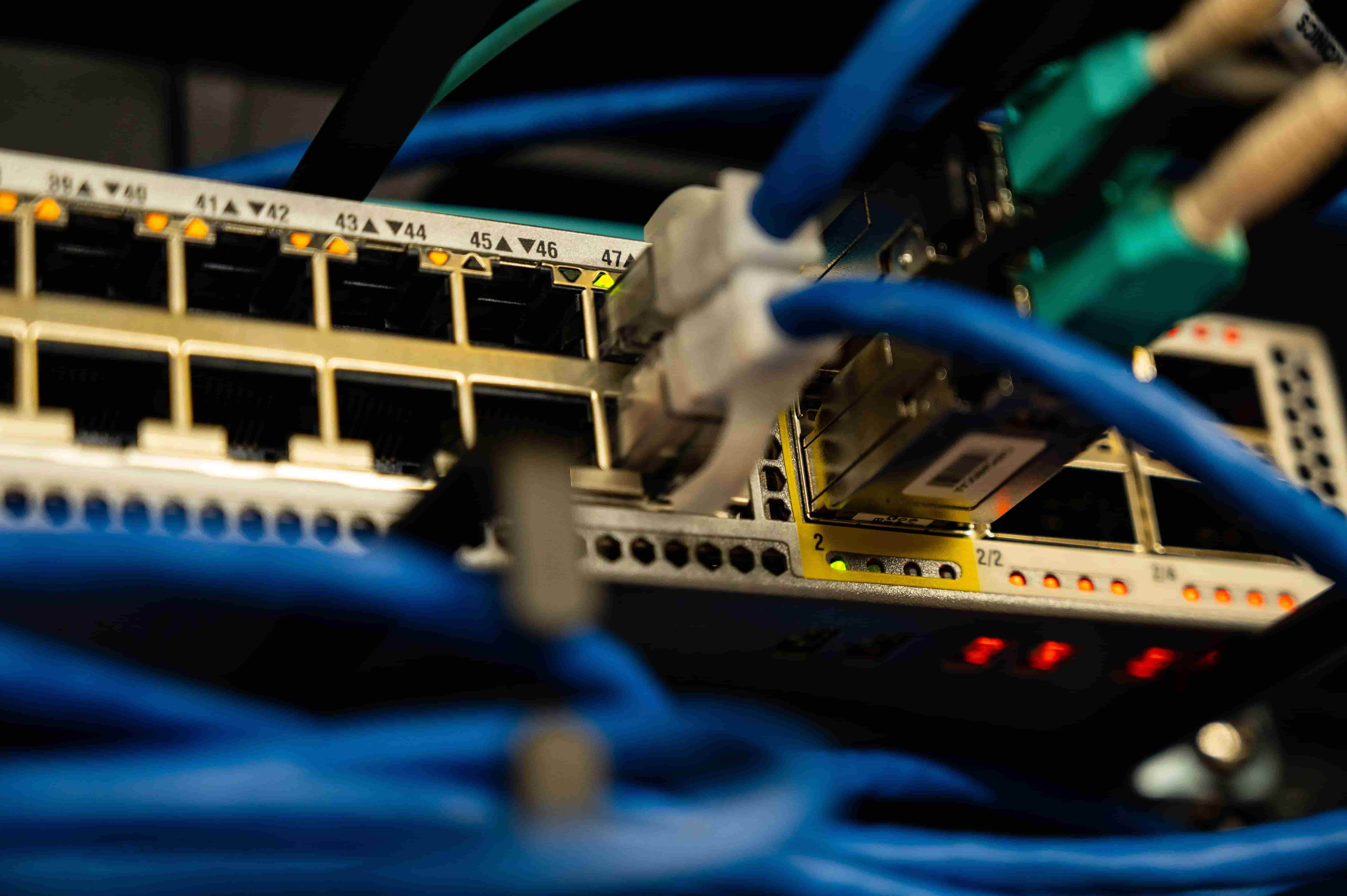
Your router is essentially the traffic controller between your home network and your broadband connection. Like any small computer, it can run into software and hardware glitches that interrupt that traffic.
As a result, the router may temporarily lose its connection to your provider or struggle to maintain connections across your devices. Old routers that have been used for years can also overheat or become less stable under sustained demand. Speaking of which…
3. Outdated equipment
When we talk about outdated equipment, we are talking about two things: the router hardware inside your home and the broadband technology connecting your property to the wider network.
Firstly, router hardware can become less reliable after years of continuous operation. As such, they may also eventually lose software support.
According to Consumer Reports (2021), which is a non-profit organization that evaluates and tests consumer products, producers are likely to cease updating older routers since writing newer software that will work with obsolete chipsets will be more and more challenging. This means that routers should be updated about every three to five years.
The second consideration is the broadband technology itself. Older connections rely partly on copper infrastructure, such as ADSL (Asymmetric Digital Subscriber Line) or FTTC (Fibre to the Cabinet).
As copper is more vulnerable to signal loss and interference over distance, these older technologies are generally inferior to the modern FTTP (Fibre to the Premises) connections.
4. Too many devices connecting at once
Your internet connection has a limited amount of bandwidth. When people in your household stream 4K videos, play online games, join video calls or download large files at the same time, these activities compete for the same capacity, which can create congestion and slow down your connection.
That matters more than ever now that working from home and hybrid work are part of everyday life.
What was once a connection only pushed to its limits when guests came over or everyone was streaming at once can now become an everyday challenge. So much so that I have friends who ended up upgrading their broadband as part and parcel of setting up a home office, especially when other household members also started working remotely.
5. Loose or damaged cables and connections
Sometimes, the problem is a lot more mundane: a poorly seated Ethernet cable (I broke the plastic cable tip more than once in my home office), a loose router power lead, a damaged phone-line cable, or an old cable that has deteriorated after years of bending.
Any one of these can cause intermittent internet dropouts or a complete loss of connectivity. In rarer cases, poor installation may also be the culprit.
6. Peak-Time Congestion

In the same way that your broadband connection has limits on how much data it can handle at once, your broadband provider also has a finite amount of network capacity available in your area.
How much capacity is available to share depends largely on the network infrastructure serving your area. When more households use the network at the same time, such as in the evening after work or school, that traffic has to compete for the available capacity.
Seems logic; It is a basic demand and supply problem: If your neighbourhood have an increased demand for internet, your internet speed will inadvertently become slower until demand eases.
There is only so much you can do about congestion on your provider's side of the network. You can report persistent problems to your internet service provider and ask them to investigate the issue.
Alternatively, you can consider upgrading your broadband service or switching to a provider with better network performance in your area.
How to Improve Your Internet Speed
1. Run an internet speed test
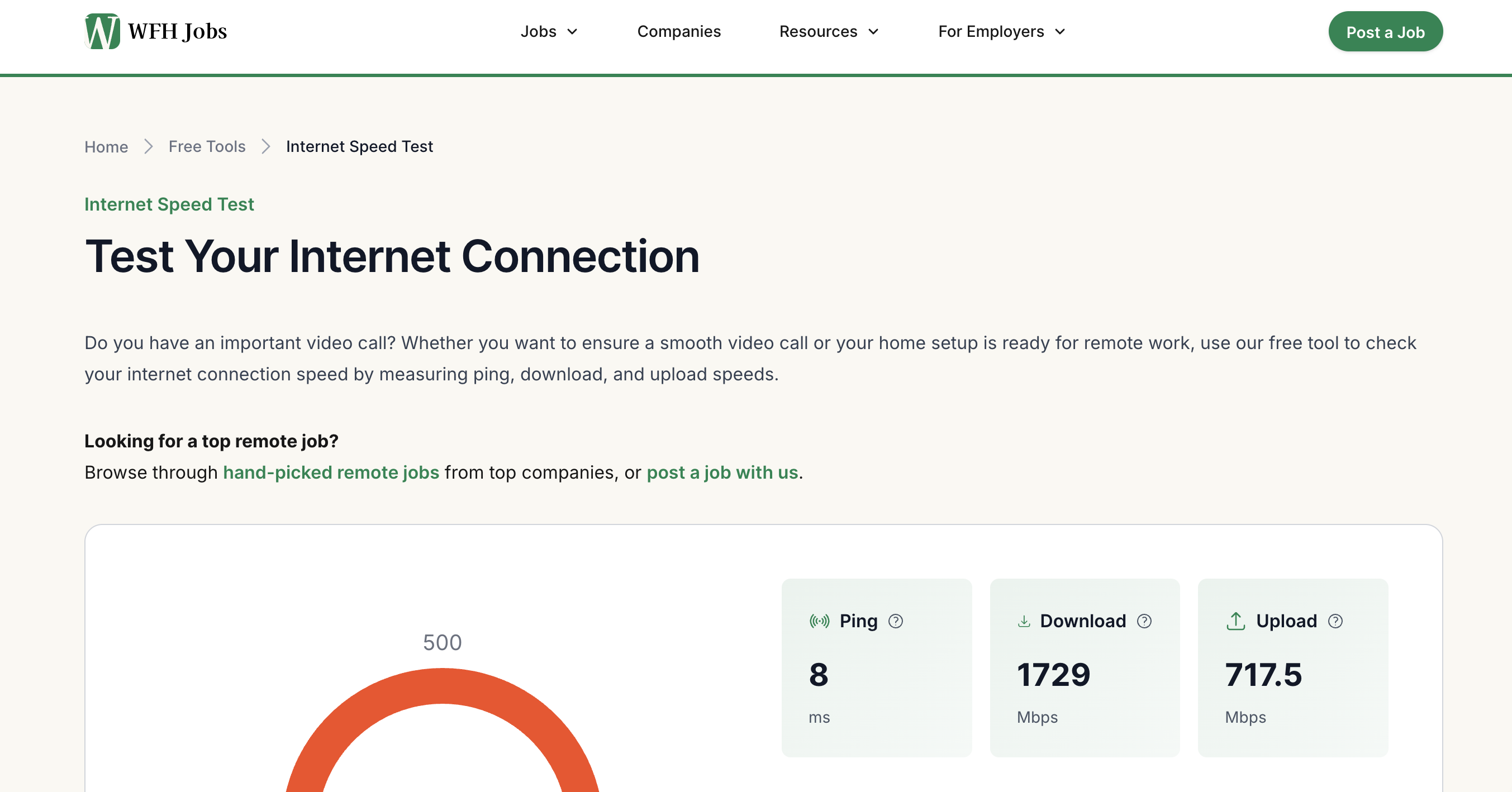
While not necessarily a way to make your internet faster by itself, running a speed test helps you verify whether something is actually amiss and puts hard numbers behind the problem.
You can use our free internet speed test tool to check your download speed, upload speed and ping. When doing so:
-
Pause streaming, large downloads, cloud backups and other bandwidth-heavy activities on other devices.
-
Run the test several times to see whether the slowdown is consistent.
You can then compare the results with the speeds advertised in your broadband package. At the same time, you can keep it as evidence if you later need to raise the issue with your provider.
Where the disparity appears can also point you towards the right fix. For example, if you get close to your expected speed over an Ethernet connection but considerably less over Wi-Fi, chances are your wireless setup is where the bottleneck lies.
2. Restart your router

"Have you tried turning it off and on again?" - Roy Trenneman, The IT Crowd
Restarting your router is one of the simplest fixes to try. Just try it and see if the internet improves.
Simply switch your router off, wait around 30 seconds, then turn it back on and give it a few minutes to reconnect.
Your router is essentially a small computer. As such, it can experience temporary software errors or have network processes stall. Restarting it reloads its software, clears temporary memory and re-establishes the broadband connection between your home network and your provider.
You should not have to restart your router frequently, though. If the same slowdowns or dropouts keep returning, another culprit is likely responsible.
3. Replace your router
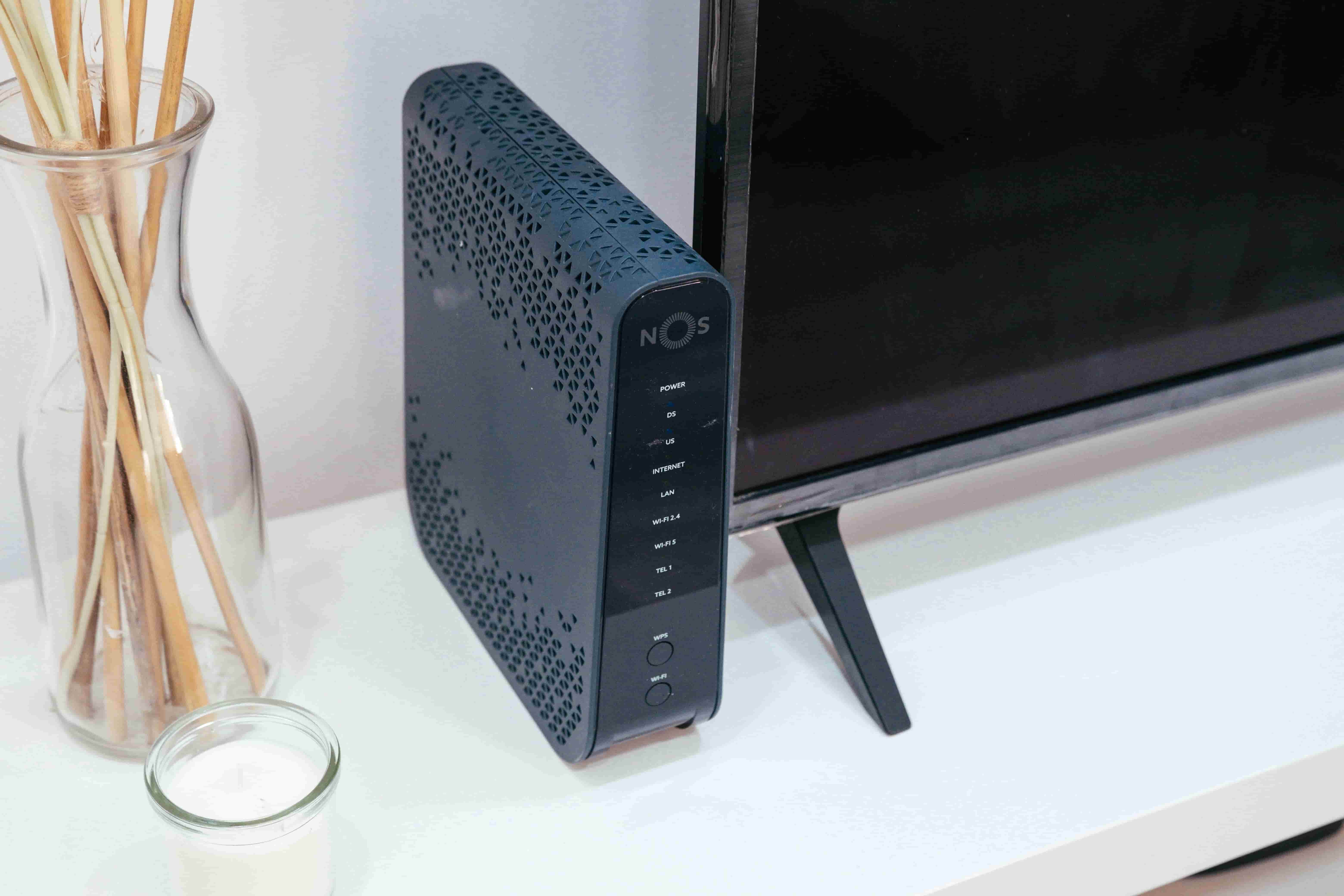
If your router is already several years old, ageing hardware could be behind recurring slow speeds or dropouts, meaning a replacement may be due. As mentioned, three to five years is a reasonable replacement window, although you do not necessarily have to wait that long if your router is already giving you persistent trouble.
Before reaching for your wallet, contact your broadband provider first. They may be able to replace or upgrade your router at no additional cost.
4. Place router where you use Wi-Fi most
If you primarily work from a home office, placing your router in or close to that room gives your device the best chance of receiving a strong Wi-Fi signal.
As discussed earlier, walls, floors and ceilings can absorb Wi-Fi radio waves. Putting several rooms or an entire floor between you and the router means the signal has more obstacles to overcome.
But what if, as is probably the case in many homes, several people need a strong Wi-Fi connection at the same time?
5. Keep your router central and elevated
If people in different rooms need access to the same Wi-Fi connection, aim for a central location where the router is roughly equidistant from the rooms.
Keep it elevated as well, whether that means placing it on a high shelf or mounting it on a wall. An elevated position can give the Wi-Fi signal a clearer path through your home.
6. Keep your router and browser updated
Do not overlook software when troubleshooting slow internet.
Router firmware is the software that controls how your router operates. Updates can fix bugs that affect connectivity and address compatibility issues with newer devices.
Many of the newer routers update automatically, though you can check your router's settings or your provider's app to confirm that you are running the latest version.
Your web browser deserves attention too, especially because problems here can easily fly under the radar.
A webpage taking forever to load does not always mean your broadband is running slowly. An outdated browser can run into compatibility or performance issues with modern websites, some of which quickly disappear once you update to the latest version.
7. Secure your Wi-Fi against unwanted users

Speaking from slightly dubious experience, I used to hover within range of a café I had previously visited simply because my phone still remembered the Wi-Fi.
I am not recommending the trick, of course. But questionable behaviour aside, it shows just how easily someone can retain access to a network long after you have forgotten about it.
So, if everyone in your household has been accounted for, yet your bandwidth is still disappearing faster than expected, someone else might be helping themselves to your Wi-Fi.
That said, slow internet suddenly becomes the least of your concerns when you understand how poor network security may also put your personal information or login credentials at risk.

To secure your Wi-Fi against unwanted users:
- Change the default administrator login and Wi-Fi password. The administrator password protects access to your router's settings, while your Wi-Fi password controls who can join the network. Use strong, unique, alphanumeric credentials for both.
- Use WPA3 encryption (or WPA2 if WPA3 is unavailable). It helps to keep your internet scrolling and your data confidential.
- Turn on your router's built-in firewall. This creates a barrier that filters potentially unwanted traffic from the internet before it reaches devices on your home network.
- Disable WPS and remote administration if you do not need them. WPS makes connecting devices easier, while remote administration lets you manage your router from outside your home network. Disabling both reduces ways for attackers to access your network.
- Create a separate guest network for visitors. That way, your house guests can still get online without receiving the credentials to your primary network or sharing the same level of access as your own devices.
You can usually check which devices are currently connected through your router's settings or your broadband provider's app.
If you spot a phone, laptop or other device that nobody in your household recognises, remove or block it and change your Wi-Fi password to cut off further access.
8. Connect with an Ethernet cable
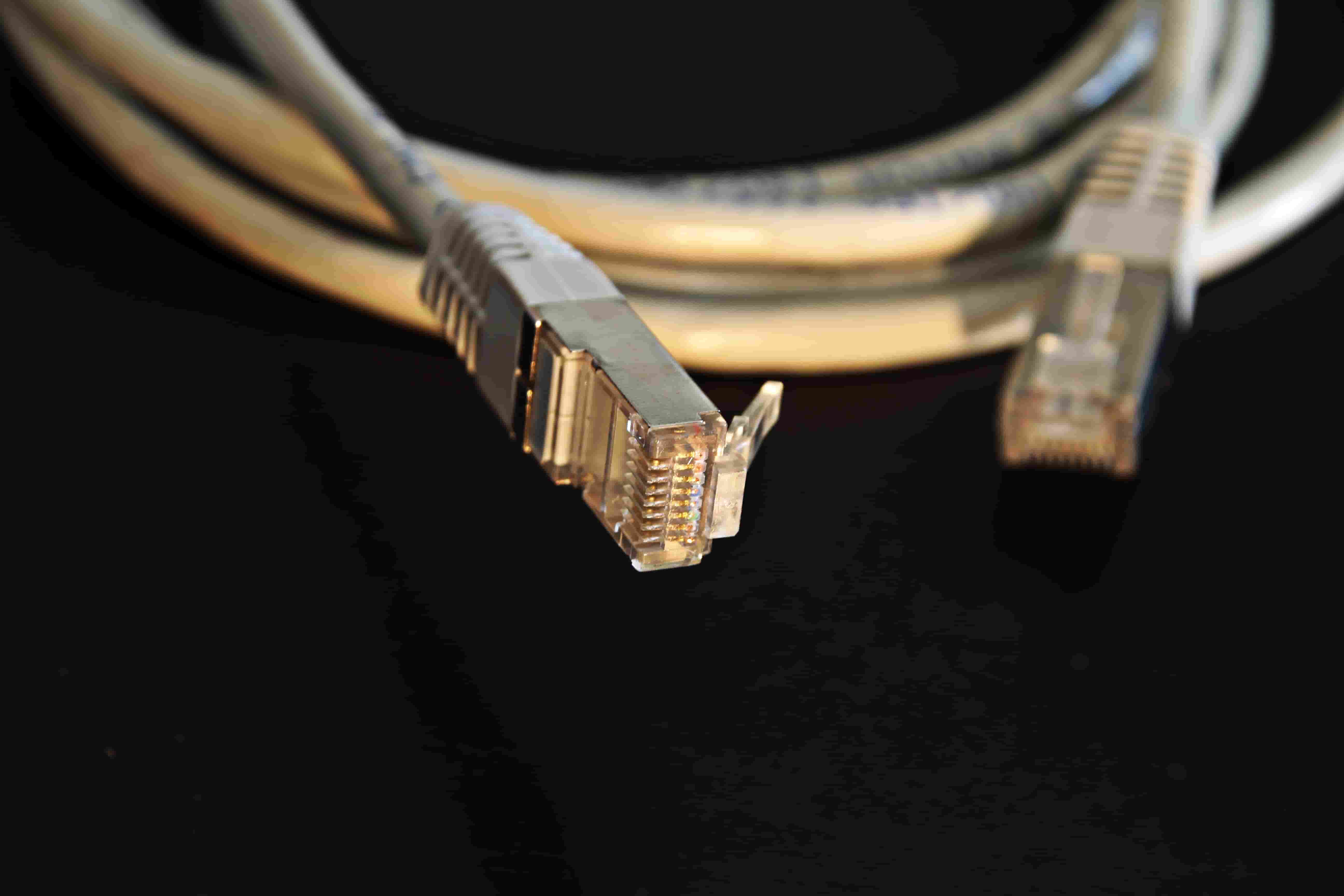
If your work setup allows it, connect your computer directly to the router with an Ethernet cable. I recommend this if video calls or large file transfers take up a good chunk of your workday.
Unlike Wi-Fi, Ethernet carries data through a physical cable rather than radio waves. This makes the connection far less susceptible to interference from other electronics or physical barriers such as walls.
Simply plug one end of the Ethernet cable into a LAN port on your router and the other into your computer's Ethernet port.
If your laptop does not have one, as is increasingly common with thinner models, you can use a compatible USB-to-Ethernet adapter.
Tip: Keep the cable away from doorways or the path of your rolling office chair, where it could easily be tugged loose or damaged. Keep it away from pets as well. If it needs to cross your home office, secure it along a wall or desk with cable clips, or run it through a cable cover.
9. Contact your broadband provider
In case you have tried all of the above-mentioned troubleshooting and optimization procedures but your Internet remains slow or frequently disconnects, then your broadband supplier should be the next place to seek help. You will get assistance from your broadband supplier to:
- Remotely test your broadband line for possible failures.
- Determine if there is a local outage affecting your service.
- Troubleshoot your router and assist with configuration problems.
- Send an engineer for a visit, if necessary.
10. Upgrade Your Broadband Package
When you have determined there are no technical issues with your equipment and Wi-Fi network and you find that your family requires more bandwidth than your existing broadband package can easily accommodate, upgrading might be what you require. Here are some steps you could consider taking:
- Simply opt for a faster broadband package with your present supplier. This is the easiest solution when everything else is good about the service.
- Choose another broadband supplier with another package, which would be more suitable for your family.
- Opt for FTTP (Fibre to the Premises) if you have access to full fibre at your location. Contrary to ADSL and FTTC, FTTP uses no copper at the last mile of its route to your premises and therefore provides a lot more speed.
Now, how much speed should you really buy? Below you can find the table to get started:
WFH household and typical usage | Suggested download speed | Suggested upload speed |
|---|---|---|
One remote worker sharing with another internet user: video calls and cloud-based work alongside another person browsing, streaming or using connected devices | 50 Mbps+ | 10 Mbps+ |
Two people regularly working from home: simultaneous video meetings, cloud applications, downloads and file sharing | 75-100 Mbps+ | 15-20 Mbps+ |
One or two remote workers in a busy family household: work calls alongside streaming, online gaming, schoolwork and multiple connected devices | 100-200 Mbps+ | 20-30 Mbps+ |
Several remote workers or a household with high internet usage: multiple simultaneous meetings, large file transfers, 4K streaming and gaming | 200-300 Mbps+ | 30-50 Mbps+ |
References
Consumer Reports. (2021, April 30). How to tell when it's time to replace your router. Consumer Reports. https://www.consumerreports.org/electronics-computers/wifi-routers/how-to-tell-when-its-time-to-replace-your-router-a5475786635/
Ofcom. (2025). Connected Nations 2025: UK report. https://www.ofcom.org.uk/siteassets/resources/documents/research-and-data/multi-sector/infrastructure-research/connected-nations-2025/connected-nations-uk-report-2025.pdf
Ookla. (2026). Speedtest Global Index: United Kingdom. https://www.speedtest.net/global-index/united-kingdom
Social Mobility Commission. (2025, December 18). Broadband speed. Social Mobility Data Explorer. GOV.UK Social Mobility Data